Registration How can I access my ePA?
Would you like to use your electronic patient file via the mhplus ePA app? We'll show you how. Explained very simply - step by step.
Step 1: Download the ePA app
Search for ‘mhplus ePA’ in your app store or scan the QR code below.
Download the ePA app from your smartphone’s app store.
Your mobile device must be running at least iOS 18 or Android 14. The lock screen and PIN entry on device start-up must be enabled.
Does your smartphone not meet these requirements? If so, you have two options: you can use the ePA via the desktop client on your PC or laptop. Alternatively, you can use the ePA without a smartphone. In this case, you do not need an app. You can authorise local doctors’ surgeries and other medical facilities to upload documents and data to your ePA.
What you’ll need:
- an eGK (electronic health card) with NFC functionality.
- a mobile device (smartphone or tablet) with NFC functionality. Secondary devices may also be added without NFC functionality if necessary. NFC stands for ‘Near Field Communication’ (wireless transmission technology). Tip: Open your device’s settings and search for ‘NFC’ – if a menu option appears, the function is available.
- An activated security feature on your mobile device (e.g. screen lock and PIN prompt on start-up).

Step 2: Register
Open the mhplus ePA app. Create a user account. Click on "Register".
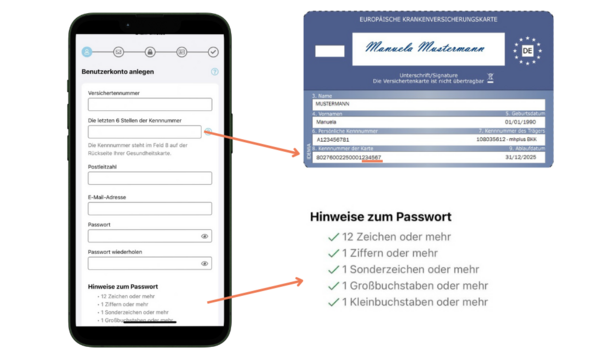
Enter your insurance number, the last 6 digits of your identification number and your postcode. You will find the identification number at the bottom left (field 8) on the back of your eHC.
Enter your e-mail address and choose a password. Make sure you also use special characters.
Accept the declaration of consent and the terms of use.
Click on "Continue" and confirm your e-mail address.
After registering, you will receive an e-mail with an activation link. The link is valid for 20 minutes.
Then go back to the app and enter your policyholder number and your previously chosen password. Finally, click on "Log in".
Step 3: Identify
To ensure secure login, set an app code (a 6-digit PIN of your choice).
You can also optionally use Face ID or a fingerprint .
You have the following options for verifying your identity:
1 ID card and PIN:
Start the process via the ePA app. You will be automatically redirected to the NECT app. There, enter either your chosen 6-digit PIN or the 5-digit transport PIN that you received in the PIN letter accompanying your identity card. Then hold your identity card up to your smartphone’s NFC reader.
Once you have been successfully identified, your data will be transferred automatically.
2 POSTIDENT in person:
Once you have started the POSTIDENT process, you will receive a confirmation email containing a transaction number and a corresponding link. To complete the identification process, please visit a post office and bring a valid identity document with you.
At the post office, your POSTIDENT QR code will be scanned and your identity document checked. Once the identification process has been successfully completed, your data will be transmitted automatically and securely.
3 Activation code (at a branch):
You can also verify your identity at your local mhplus branch. To do so, please bring a form of identification and your electronic health card (eGK). Once you have been successfully identified, you will be given a printed copy of your activation code. Please note that the activation code is only valid for 14 days. You will then receive the PIN for your health card by post from mhplus. This may take up to 2 weeks.
4 Health card (and associated PIN):
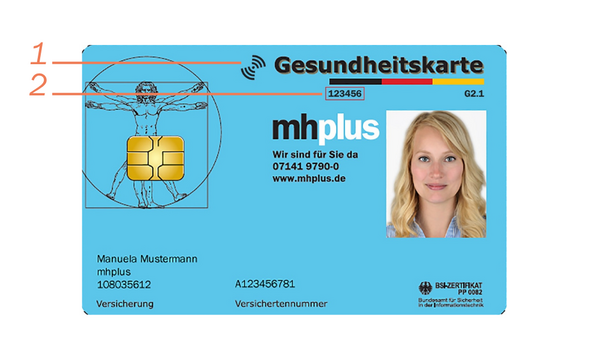
If you already have your eGK and the associated PIN, you can use them to log in directly to the ePA. As well as the PIN, you will also need the access number. You’ll find this at the top centre of the front of your health card (marked with a 2 in the image). You will also need an NFC-enabled health card. You can recognise this by the Wi-Fi symbol, which is also located on the front (marked with the number 1 in the image). If you have not yet received your PIN, you cannot select this option. Please use one of the other methods of identification.
5 Identification using an ID document without a PIN (ePassport):
For identification, you can use an NFC-enabled ID document (ePassport), for example a passport issued in or after 2005 or an identity card issued on or after 2 August 2021. The document must bear the NFC symbol, recognisable as a small rectangle with a circle in the centre. Identification takes place via the NECT app, to which you will be automatically redirected from the ePA app. Please ensure that the details on your identity document match the information held by your health insurance provider.
Step 4: Log in
Call up your electronic patient file by clicking on "Patient file".
Accept the terms of use of the ePA and click on "Continue".
When you set up access to the ePA, a health ID is automatically created for you. You can also use this to access the e-prescription.
Decide for yourself which applications you would like to be automatically registered for.
Select these and click on "Continue".
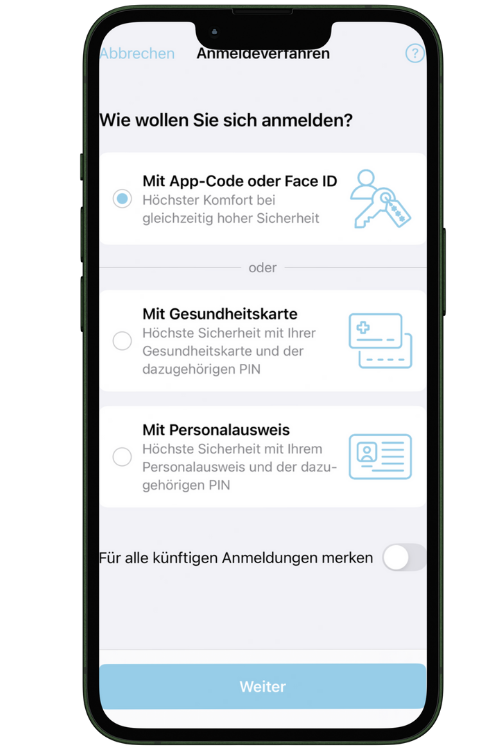
There are three ways in which you can register:
a. App code or Face ID (recommended):
Enter the app code that you have already set in step 3. You will receive a unique registration code by e-mail. Enter this and click on "Next".
Note: The code must be renewed every 6 months by re-identifying yourself and the device (device binding). This can be done using one of the following methods: eGK or eID + PIN.
b. With eGK and PIN:
Hold your NFC-enabled eGK up to the device and enter your PIN. You will receive this PIN by letter from your mhplus after successful identification (step 3).
c. With identity card (eID):
Hold your ID card (with online function) up to the device and enter the corresponding PIN.
Note: The PIN for the eID is not the same as for the eGK.
Good to know: If you log out of the ePA app, you will have to enter your policyholder number and password again the next time. This happens automatically if it has been more than 6 months since your last identification.
Mehrere Anwendungen. Ein Login.
Für die mhplus Service-App, die Online-Filiale und die ePA-App verwenden Sie dieselben Zugangsdaten.
Der verfügbare Zugang hängt von der Art der Identifizierung ab:
- Identifizierung mit Freischaltcode: Nutzung der Service-App und Online-Filiale. Dieser Flyer hilft Ihnen.
- Identifizierung mit sicherem Ident-Verfahren (z. B. Ausweis, PostIdent oder Gesundheitskarte): Nutzung der Service-App, Online-Filiale sowie ePA-App. Dieser Flyer hilft Ihnen.