Registration How do I register?
Would you like to use your mhplus service app? We'll show you how. Explained very simply - step by step.
Step 1: Download the service app
Search for the ‘mhplus Service App’ in your app store or scan the QR code.
Download the mhplus Service App from your smartphone’s app store.
Your mobile device must be running at least iOS 18 or Android 14. The lock screen and device PIN (for unlocking on start-up) must be enabled. Alternatively, biometric authentication is also possible.
We’ll guide you through the registration process in the following steps. Alternatively, this summary leaflet will help you.

Step 2: Register
Do you already use the mhplus ePA app? If so, you can simply log in with your existing password and app code. Then confirm your registration in the ePA app. You can find step-by-step instructions in this flyer.
If the ePA app is not yet activated, proceed as follows:
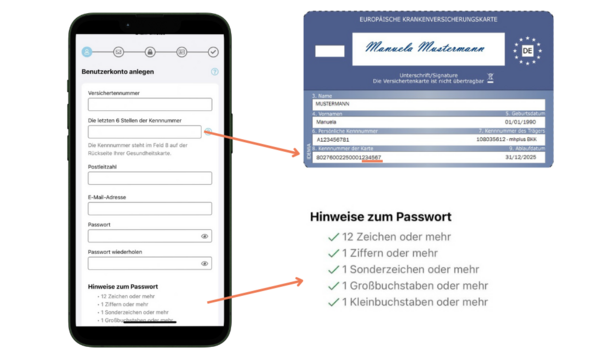
Open the mhplus service app. If you do not yet have a user account, click on Register.
Enter your policyholder number, the last 6 digits of your identification number and your postcode. You will find the identification number at the bottom left (field 8) on the back of your mhplus health card.
Enter your e-mail address and choose a password. Make sure you also use special characters.
Accept the declaration of consent and the terms of use.
Click on Continue. You will then receive an e-mail with an 8-digit confirmation code. Please also check your spam folder to see if the e-mail has arrived there. Confirm your e-mail address in the app with this confirmation code. The confirmation must be sent within 20 minutes.
Step 3: Set app code
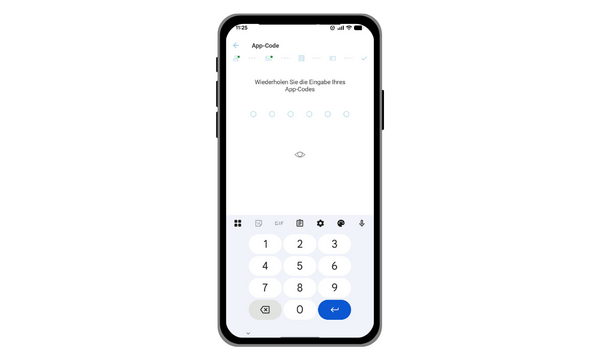
For a secure login, first assign an app code - a six-digit PIN of your choice.
Confirm the code by entering it again and tap OK.
Your app code is now set up.
Optionally, you can also use Face ID or a fingerprint .
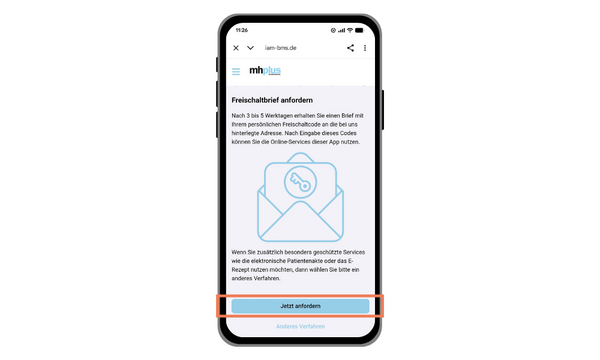
Step 4: Request activation letter
In the next step, you can request an activation letter. To do this, click on Request now.
If you would like to use a different method of identification, tap on Other method below. You can find out which alternatives are available to you in the next step below.
You will receive the activation code by post after 3 to 5 working days. Then tap on Enter now to continue. If the activation code is correct, you can use your online services directly.
Full access with your Health ID
Registering with an activation code gives you access to the Service App and the online branch. Your GesundheitsID will be fully set up using one of the following identification methods – this will allow you to use the ePA App as well as the Service App and the online branch.
1 Identity card and PIN:
Start the process via the Service App. You will be automatically redirected to the NECT app. There, enter either your self-chosen 6-digit PIN or the 5-digit transport PIN that you received with the PIN letter accompanying your identity card. Then hold your identity card up to your smartphone’s NFC reader.
Once you have been successfully identified, your data will be transferred automatically.
2 POSTIDENT in person:
Once you have started the POSTIDENT process, you will receive a confirmation email containing a transaction number and a corresponding link. To complete the identification process, please visit a post office and bring a valid identity document with you.
At the post office, your POSTIDENT QR code will be scanned and your identity document checked. Once the identification process has been successfully completed, your data will be transmitted automatically and securely.
3 Aktivierungscode (in einer Geschäftsstelle):
Sie können sich auch in Ihrer mhplus-Geschäftsstelle identifizieren. Bringen Sie hierfür ein Ausweisdokument sowie Ihre elektronische Gesundheitskarte (eGK) mit. Nach erfolgreicher Identifizierung erhalten Sie ausgedruckt Ihren Aktivierungscode. Beachten Sie, dass der Aktivierungscode nur 14 Tage gültig ist. Anschließend bekommen Sie die Geheimzahl (PIN) für Ihre Gesundheitskarte per Brief von Ihrer mhplus. Das kann bis zu 2 Wochen dauern.
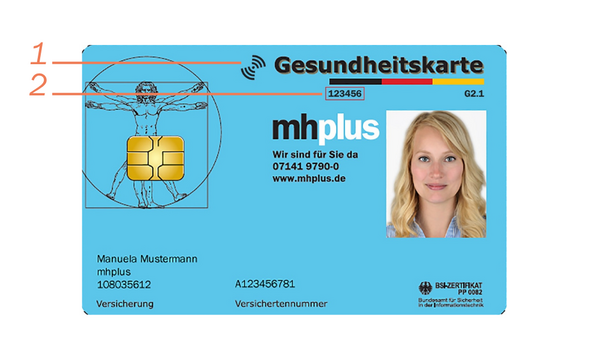
4 Gesundheitskarte (und dazugehöriger PIN):
Wenn Sie Ihre eGK und die dazugehörige PIN schon haben, können Sie sich damit direkt in der Service-App anmelden. Neben der PIN Nummer benötigen Sie ebenfalls die Zugangsnummer. Diese finden Sie auf der Vorderseite Ihrer Gesundheitskarte oben in der Mitte (im Bild mit der 2 markiert). Ebenso brauchen Sie eine NFC-fähige Gesundheitskarte. Dies erkennen Sie an dem wifi-Kennzeichen, welches sich ebenfalls auf der Vorderseite befindet (siehe im Bild mit der 1 markiert). Falls Sie die PIN noch nicht erhalten haben, können Sie diese Variante nicht wählen. Bitte verwenden Sie eine der anderen Methoden zur Identifikation.
5 Identifizierung mit Ausweis ohne PIN (ePass):
Für die Identifizierung können Sie ein NFC-fähiges Ausweisdokument (ePass) nutzen, zum Beispiel einen Reisepass ab Ausstellungsjahr 2005 oder einen Personalausweis ab dem 02.08.2021. Das Dokument muss das NFC-Symbol tragen, erkennbar an einem kleinen Rechteck mit einem Kreis in der Mitte. Die Identifizierung erfolgt über die NECT-App, zu der Sie automatisch aus der ePA-App weitergeleitet werden. Bitte achten Sie darauf, dass die Angaben in Ihrem Ausweisdokument mit den bei Ihrer Krankenkasse hinterlegten Daten übereinstimmen.
Multiple applications. One login.
You use the same access data for the mhplus service app, the online branch and the ePA app.
The available access depends on the type of identification:
- Identification with activation code:
Use of the service app and online branch. The flyer "Quick registration with activation code" will help you. - Identification using a secure identification procedure (e.g. ID card, PostIdent or health card):
Use of the service app, online branch and ePA app. The flyer "Registration with activation code" will help you.