Functions How do I take part?
With the mind+move app, you have your benefits at your fingertips at all times. We'll show you how to navigate the app and be rewarded for mindful behaviour and activity.
How to find your way around the main menu
The main menu of the app is divided into three areas:
- Mind Challenge: Mindful behaviour is recorded here. You will also find the option of a mindfulness diary.
- move-Challenge: Your running activities are recorded here. You also have the option of connecting a step tracker.
- Good to know - here you will find everything else: For example, your mailbox with information on submitted bonus programmes or contact options. You will also find the Help category here, which provides you with a list of questions and answers, as well as the option to report problems with the app.
At the top right you will find your profile - you can easily unsubscribe from it.

How to start the mind challenge
- If you are in the main menu, tap on Home to go to the challenge.
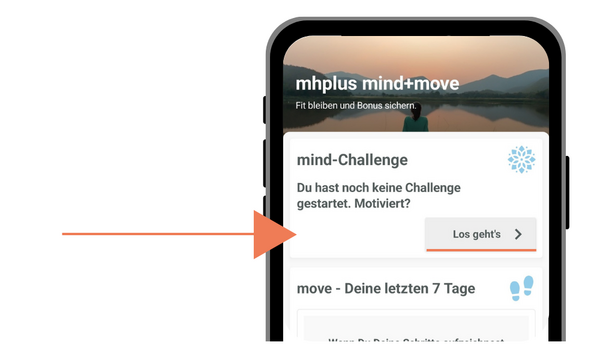
- You will find the mind challenge on the start page of the app. In the mind challenge, tap Let's go to get started. In the first step, you can choose whether you only want to listen to one exercise or start with the mind challenge.
- To follow the path to your bonus, tap on Start challenge.
How the mind challenge works
- After opening the app, you will see all available challenges. Initially, only the basic mind challenge is unlocked. Once you have successfully completed it, the other challenges are automatically enabled.
- When the challenge is started, you will be taken to the exercise overview. There you can see your current progress and the exercises you can do.
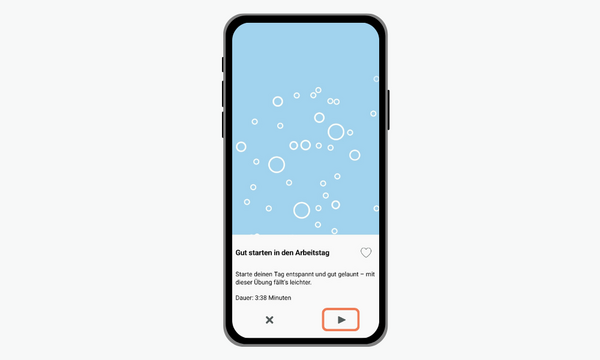
- Select an exercise and start it by clicking on the play icon at the bottom right.
- After the exercise, you can indicate how you feel. If you wish, you can also make a short diary entry. You can also mark your favourite mindfulness exercises with a heart to save it as a favourite.
- Click on "Done" to complete your daily task.
- Once you have completed the basic+smart or basic+pro challenges, you will be automatically forwarded to the payout.
How to start the move challenge
- If you are in the main menu, tap on Home to go to the challenge.
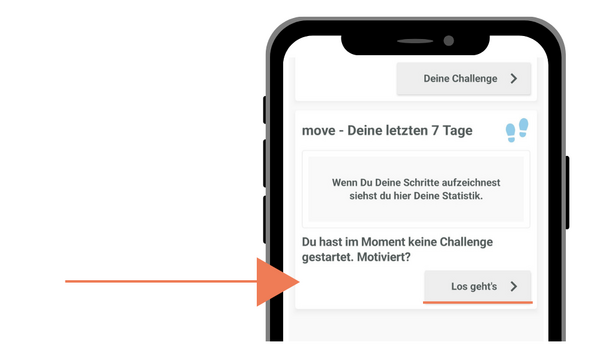
- You will find the move challenge on the start page of the app. In the move challenge, tap Let's go to get started. In the first step, you can choose whether you just want to track your progress or start with the move-Challenge warmUp.
- To track the path to your bonus, tap on Start challenge.
How the move challenge works
- You always start with the warm-up challenge. The other levels - smart and pro - are still locked at the start.
- Select warmUp and then connect your fitness tracker or your Health app. Tap on the provider (Apple Health, Health Connect, Garmin, Polar or Fitbit) that you want to use and agree to the connection. Once the link is established, you're ready to go!
- You can find out how to connect your tracker here
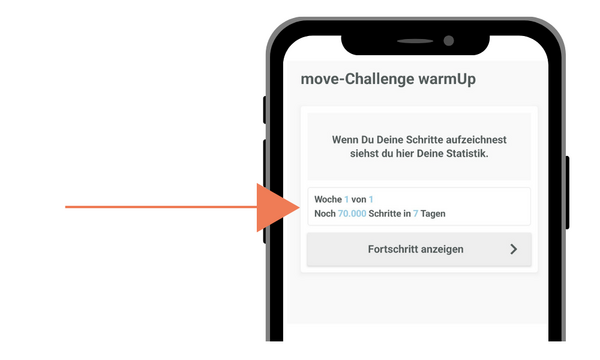
- In the challenge overview, you can see how many steps you have already taken - and how many you still need to reach your goal.
- Once you have completed the warmUp+smart or warmUp+pro challenges, you will be redirected to the payout page.
Notes on the settings
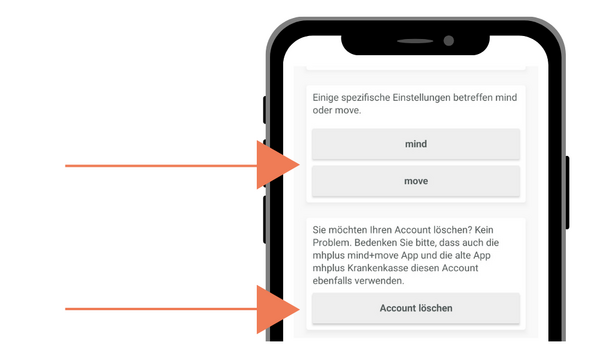
- Tap the menu icon at the top left of the app and then tap Settings. Here you can make settings for move or mind or delete your account.
- You can also delete your progress in mind and move if you want to restart a challenge.
- Do you have the feeling that your progress is not being saved or that something is wrong? The so-called anonymous log is available for this. Select whether your problem concerns mind or move. Tap on Send log. Optionally, add a description of the problem to your log. Your mhplus will check your data in the app and then contact you. If you have any further problems, please do not hesitate to contact us. Give us a call(07141 9790-0) or send us an e-mail